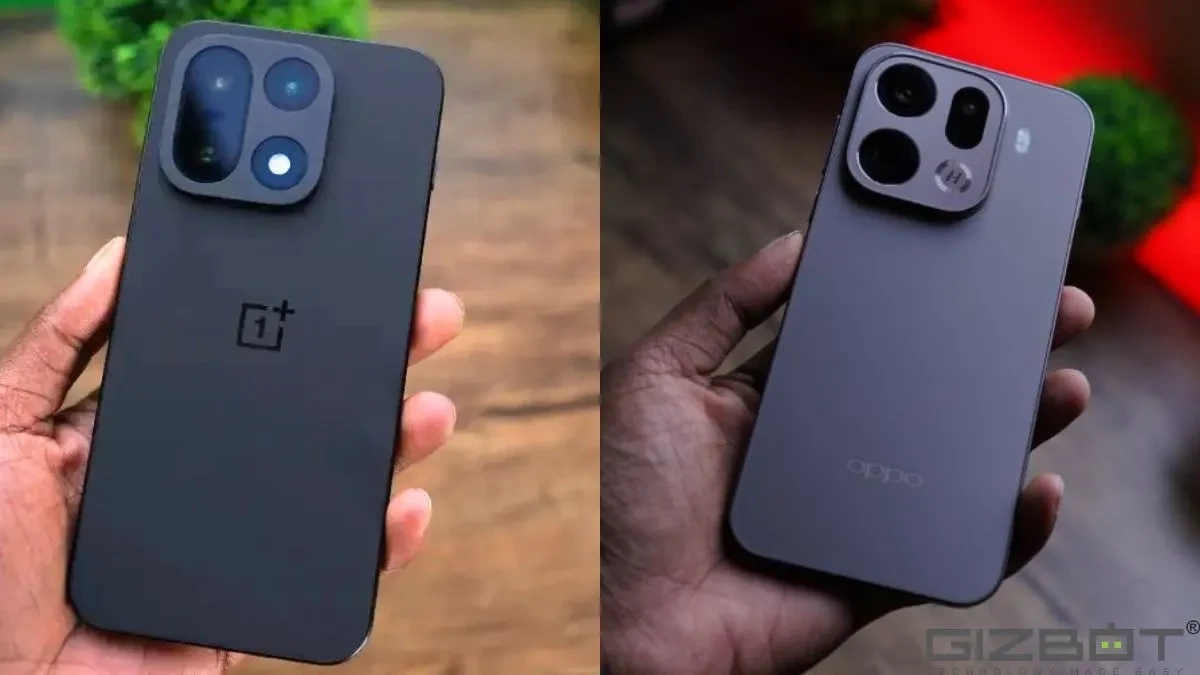
OPPO and OnePlus have started rolling out Android 17 Beta 2 to a limited set of devices, giving developers and curious users an early look at what’s coming next.
But both companies are making one thing very clear: this isn’t software you install casually.
Right now, the update is only available on the OPPO Find X9 Pro and the OnePlus 15, and even there, it comes with a long list of conditions.
Limited Rollout With Developer Focus
On OPPO’s side, the Android 17 Beta 2 build is restricted to the Find X9 Pro. No other devices are part of this program yet. The build also includes the latest Google Mobile Services package.

OnePlus is following a similar approach with the OnePlus 15. Its developer preview is also based on Android 17 Beta 2 and supports the latest GMS version. In both cases, system apps that overlap with Google’s offerings may not be included after installation.

This isn’t unusual for early developer builds, but it does mean the experience can feel incomplete.
Not Designed For Daily Use
Both companies are positioning this as a developer preview, not a stable release.
OPPO warns that the software may cause freezing issues with interconnection features and touch response. Users might also run into visual glitches in system apps, screen flickering, and random crashes. Third-party apps may not behave as expected, and some might not work at all.
OnePlus shares a similar stance. The company is explicit that this build is meant for testing, not everyday use. It’s the kind of software you install if you’re building apps or want early access, not if you rely on your phone for daily tasks.
Installation Comes With Real Risks
If you’re thinking about trying it anyway, there are a few things to keep in mind.
Installing Android 17 Beta 2 will completely wipe your device. That includes apps, photos, documents, and everything else stored locally. OPPO suggests backing up data through the built-in local backup tool and then moving that backup to another device, since keeping it on the phone won’t help.
And then there’s the bigger risk. Both brands acknowledge that things can go wrong during installation, including the possibility of bricking the device if steps aren’t followed correctly.
How To Install Android 17 Beta 2
If you’re comfortable with the risks and want to go ahead, here’s how the installation process works for the and the :
- Download the Android 17 Beta 2 upgrade zip file on your PC
- Transfer the file to your phone’s internal storage
- Enable Developer Mode by going to Settings → About device → Version → tap Build number 7 times (enter password if asked)
- Head back to Settings → About device → tap the top card → tap the top-right menu → choose Local install
- Select the zip file and tap Extract
- Once extraction completes, tap Install
- After installation finishes, tap Restart
Once your phone boots up, it should be running Android 17 Beta 2.
Early Access, With Trade-Offs
Android 17 Beta 2 gives a preview of Google’s next platform update, but right now, it’s clearly aimed at developers and advanced users who understand what they’re getting into.
If you’re comfortable with manual installs, data wipes, and unstable software, there’s room to experiment. For everyone else, waiting for a stable rollout is the safer move.