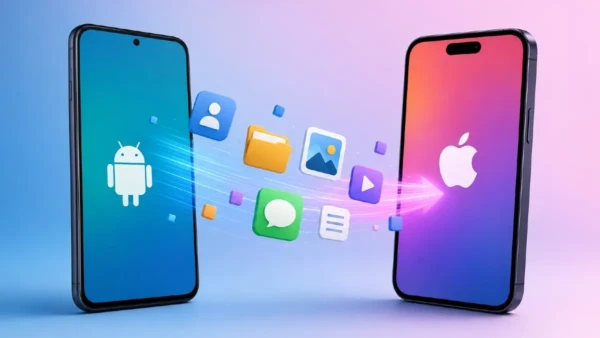
Switching from an Android smartphone to an iPhone is now much easier than before. With newer iPhones like the Apple iPhone 17 series attracting users through improved cameras, better software support, and AI-powered features, many Android users are considering making the move to iOS. However, one major concern during the switch is transferring important data such as contacts, photos, messages, and videos without losing anything.
Thankfully, Apple offers an official solution called the Move to iOS app that simplifies the entire migration process. The app wirelessly transfers essential data from an Android phone to a new iPhone during the initial setup stage. Here is a complete step-by-step guide explaining how to move your data safely and efficiently.
Things to Do Before Starting the Transfer
Before beginning the transfer process, there are a few preparations you should complete to avoid interruptions or failed transfers.
Follow these steps before transferring data:
- Connect both the Android phone and iPhone to a stable Wi-Fi network.
- Update both devices to the latest available software version.
- Ensure the iPhone has enough free storage space for all the incoming data.
- Keep both smartphones connected to chargers throughout the process.
- Disable mobile data on the Android device to maintain a stable connection.
Taking these precautions helps ensure a smoother transfer experience, especially if you are moving large amounts of photos, videos, or chats.
How to Use the Move to iOS App
Apple’s Move to iOS app is available free of cost on Android and works during the first-time setup of a new iPhone.
Step-by-step process to transfer data:
- Turn on the new iPhone and begin the setup process.
- Continue until you reach the “Apps & Data” screen.
- Tap the “Move Data from Android” option.
- On your Android phone, open the Google Play Store and download the Move to iOS app.
- Open the app on Android and tap “Continue.”
- Accept Apple’s terms and permissions when prompted.
- The iPhone will display a six-digit or ten-digit verification code.
- Enter this code on the Android device to connect both phones.
- The Android device may ask permission to join a temporary Wi-Fi network created by the iPhone. Approve the request.
- Once connected, select the categories of data you want to transfer, including contacts, photos, videos, messages, calendars, and bookmarks.
- Tap “Next” to start the transfer process.
The time required depends on the amount of data being moved. Larger media libraries may take longer, so avoid using either phone until the process is fully completed.
What Data Can and Cannot Be Transferred
The Move to iOS app supports most commonly used data types, but there are still some limitations users should know about.
Data transferred automatically:
- Contacts
- SMS messages
- Photos and videos
- Calendars
- Browser bookmarks
- Google account information
Data that requires manual transfer:
- Music files
- PDFs
- Books and documents
- Apps unavailable on iOS
Apps available on both Android and iOS may automatically appear as suggestions for download on the App Store. However, Android-exclusive apps will not transfer to the iPhone.
Troubleshooting Common Transfer Problems
Sometimes the transfer process may freeze or fail due to network interruptions or software issues. Fortunately, most problems can be fixed quickly.
If the transfer fails, try these steps:
- Restart both smartphones.
- Ensure Wi-Fi is enabled on both devices.
- Keep the phones close to each other during the transfer.
- Disable Smart Network Switch on Android devices.
- Turn off mobile data temporarily.
- Retry the transfer process from the beginning.
These simple troubleshooting methods usually resolve connection-related issues during the migration process.
Final Checks After Completing the Transfer
Once the transfer is complete, finish the remaining iPhone setup process. After reaching the home screen, open apps like Photos, Messages, Contacts, and Calendar to confirm that all important files and conversations have been copied successfully.
If certain files are missing, you can manually move them later using cloud storage platforms or a computer. Overall, Apple’s Move to iOS app provides a simple and reliable way for Android users to switch to iPhone without losing essential data.